CONSORT: Turning a Clinical Registry into a Guided Experience
Redesigning a registry for hand and face transplant trials so its long forms read like a guided interview instead of a wall of fields.
Overview
I redesigned CONSORT, a clinical registry, so that its long forms read like a guided interview instead of a wall of fields. Most of the work went into the parts people use most: entering patient data, finding their way around, and getting help.
CONSORT (Clinical Organization Network for Standardization of Reconstructive Transplantation) is the shared registry for hand and face transplant trials across US transplant centers. Transplant coordinators, principal investigators (PIs), governance staff and site administrators use it to register sites and trials, enroll recipients, and record evaluations against UNOS transplant standards.
The project started in August 2026 as a request for a visual refresh. In the first weeks the brief changed. The real goal was to make data entry feel like being walked through it, closer to TurboTax than to a spreadsheet.
| Role | Lead UX designer: audit, prioritization, clickable prototype, design tokens and accessibility fixes in the production app |
|---|---|
| Timeline | August to October 2026: audit in August and September, prototype in September and October, implementation from October |
| Team | Product sponsor, clinical stakeholders, development team |
| Product | Angular and Angular Material web app used by six roles |
| Tools | Figma, an HTML and CSS clickable prototype, ANDI for Section 508 testing |
The problems we set out to solve
Eight problems shaped the redesign. The first one, unguided data entry, was the reason the project existed. The rest came out of the audit and stakeholder reviews.
| Problem | What we found |
|---|---|
| No guided experience | The pre-transplant evaluation was 99 fields across 7 tabs, about 250 controls on screen at once, with no sense of progress. Questions that did not apply still appeared. The sponsor put it plainly: the app "needs to be more intuitive, not assume system knowledge". |
| Not accessible | The main navigation and table row actions could not take keyboard focus. Pages had no main landmark or skip link, tab bars had no tab semantics, and filters were labeled only by placeholder text. The app has to meet Section 508, and future patient users include people with limited hand mobility. |
| Help was hard to find | A user guide existed, but nothing pointed to it from the task at hand, and links to articles opened the guide's front page. |
| Fragmented workflows | The same patient was chosen in several places, each with its own search box. Focus Areas repeated the registry under another menu label. Editing a patient reused the Add Patient wizard with no sign that changes needed PI approval. |
| Hard to pick up unfinished work | Getting back into a long form took many clicks. Nothing remembered where someone stopped, and the app signs people out after 30 idle minutes. |
| No onboarding | New users landed on a reporting dashboard. Empty lists said "No data matching the filter" when no filter was set, and an empty patient profile showed "Failed to load patient data". |
| Inconsistent visual language | One dashboard alone used 18 text colors, 14 backgrounds, 10 font sizes and 3 font families. Forms and tables were built differently, with four paginators and about seven step-indicator patterns. |
| Confusing navigation | Menu labels mirrored the system, not the job ("Network Site Trial Management"). There was a "Reporting" and a "Smart" dashboard, there were no breadcrumbs, and pages a role could not open redirected without a word. |
Deciding what to fix first
I turned every finding into one prioritized backlog, ranked by user impact and compliance risk, and sized each fix by reading the front-end code rather than guessing. Stakeholder reviews and a code walk-through refined it over the following weeks.
Two decisions shaped the order:
- The current app before patient features. The sponsor wanted the tool staff use every day fixed before anything patient-facing, so patient features moved to a later phase.
- Design where design alone could fix it. The prototype went furthest on navigation, onboarding and notifications, which needed no new back end. Guided data entry and sortable tables depend on build work, such as saving drafts on the server, so the prototype set the target and the build follows in stages.
Design principles
Six principles kept the redesign honest. Most of them come from what makes a guided interview work.
- One topic at a time, in the order the work happens. Long forms became short steps grouped by subject, with questions that only appear when they apply.
- Don’t ask what we already know. Patient ID, site, birth sex and transplant type carry over from the patient record. People confirm them instead of typing them again.
- Always show where you are and what comes next. Every multi-step flow shows progress, and every patient shows its next step.
- Help where the question is asked. Each page links to the user guide article for that task.
- Accessible by default. Real buttons, labels, landmarks and tab semantics come first. The same markup that serves screen readers also lets voice control and AI agents work the forms.
- Reorganize, don’t remove. Evaluation questions follow the UNOS transplant registration standard, so no required question could be dropped or reworded. The guidance comes from order, grouping and skip logic.
The guided pattern already existed in one place: site registration was a nine-step wizard. Treating the rest as a migration to that pattern, not a new invention, kept the work achievable for the development team.
Design decisions, before and after
Each pair below shows the live app before any refresh work next to the approved prototype. Patient data on both sides is a made-up sample patient.
A guided evaluation instead of a 99-field form
The problem: the pre-transplant evaluation was seven tabs of dropdowns, including questions that did not apply, such as transplant pregnancies for a male patient. And because it follows the UNOS standard, no question could be cut or reworded.
The decision: keep every question but change how they arrive. The evaluation is now an 11-step interview grouped by subject: About the recipient, Clinical picture, Function and quality of life, Medications, and Finish. Skip logic hides questions that don’t apply, answers already in the patient record carry over, and single-choice questions are large radio options instead of dropdowns.
The trade-off: more steps means more clicks. Visible progress and Save and exit make the length feel manageable, and saving drafts on the server means a sign-out no longer loses the work.
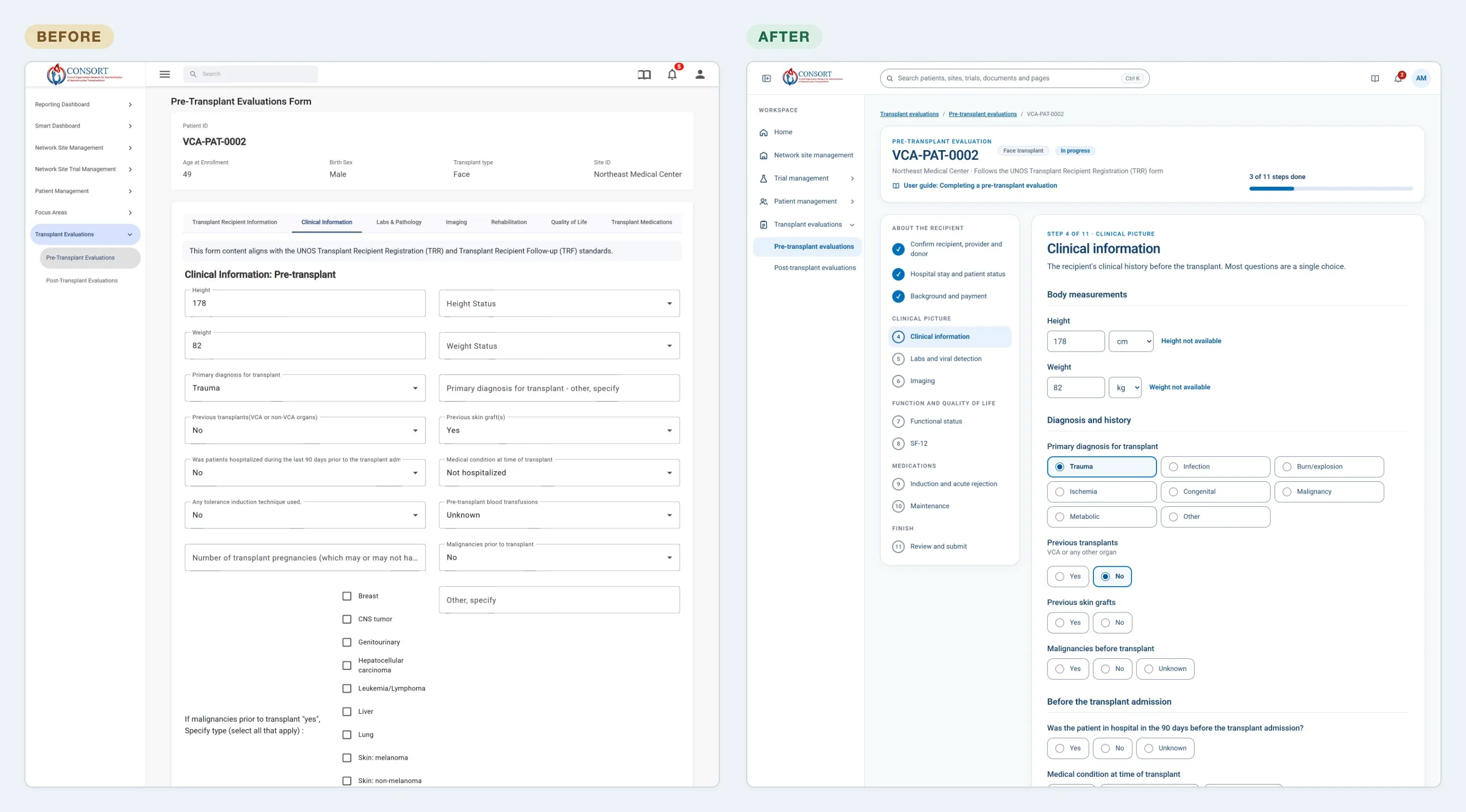 The pre-transplant evaluation: 7 tabs of dropdowns before, an 11-step guided interview after.
Picking up where you left off
The problem: Home opened on network-wide charts, the same for every role, and getting back into an unfinished form took many clicks.
The decision: Home now opens on the person’s own work. “Pick up where you left off” returns a coordinator to the exact step of an unfinished evaluation, with task shortcuts and pending tasks beside it. Each role sees its own work: a PI’s Home leads with the eligibility and change reviews waiting for them. The network charts moved below, and each can switch to a table.
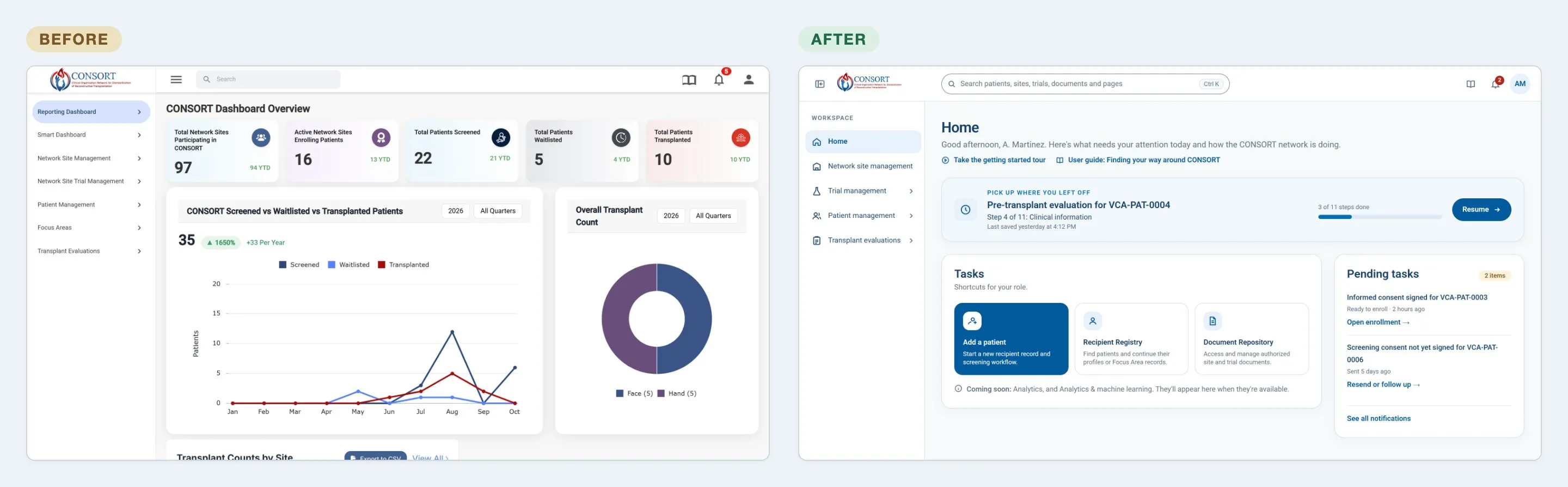 Home: a reporting dashboard before, the coordinator’s own work first after.
Help where the question is asked
The problem: the user guide was a separate knowledge base that people had to think of opening.
The decision: every page links to its own article, such as “User guide: Completing a pre-transplant evaluation”, and the guide opens on a getting-started article for each role.
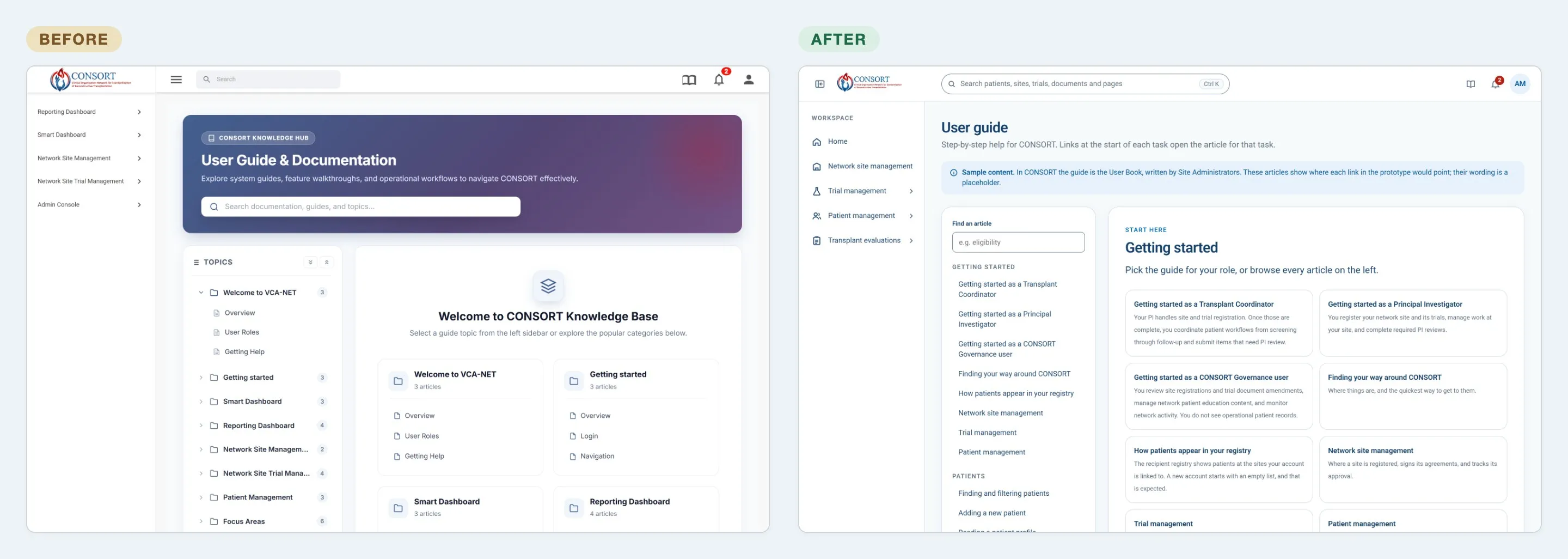 The user guide: a separate knowledge hub before, role-based getting started articles after.
One way in to a patient, and approvals you can see
The problem: the same patient was chosen in several places, the profile was a search box plus a list of every recorded field, and nothing showed when a change was waiting for the PI.
The decision: the Recipient registry is now the one place to find a patient, and each row offers labeled Profile and Focus areas actions. We kept the profile and Focus Areas as separate flows, but gave them that single entry point. The profile opens on a transplant journey that shows how far the patient has come, and a Next step panel says what to do now.
Approval became part of the flow instead of a surprise. While an edit waits for the site PI, the profile says the record is locked and links to the pending changes. When adding a patient, the step list shows which steps the coordinator can do now and which unlock after the PI confirms eligibility.
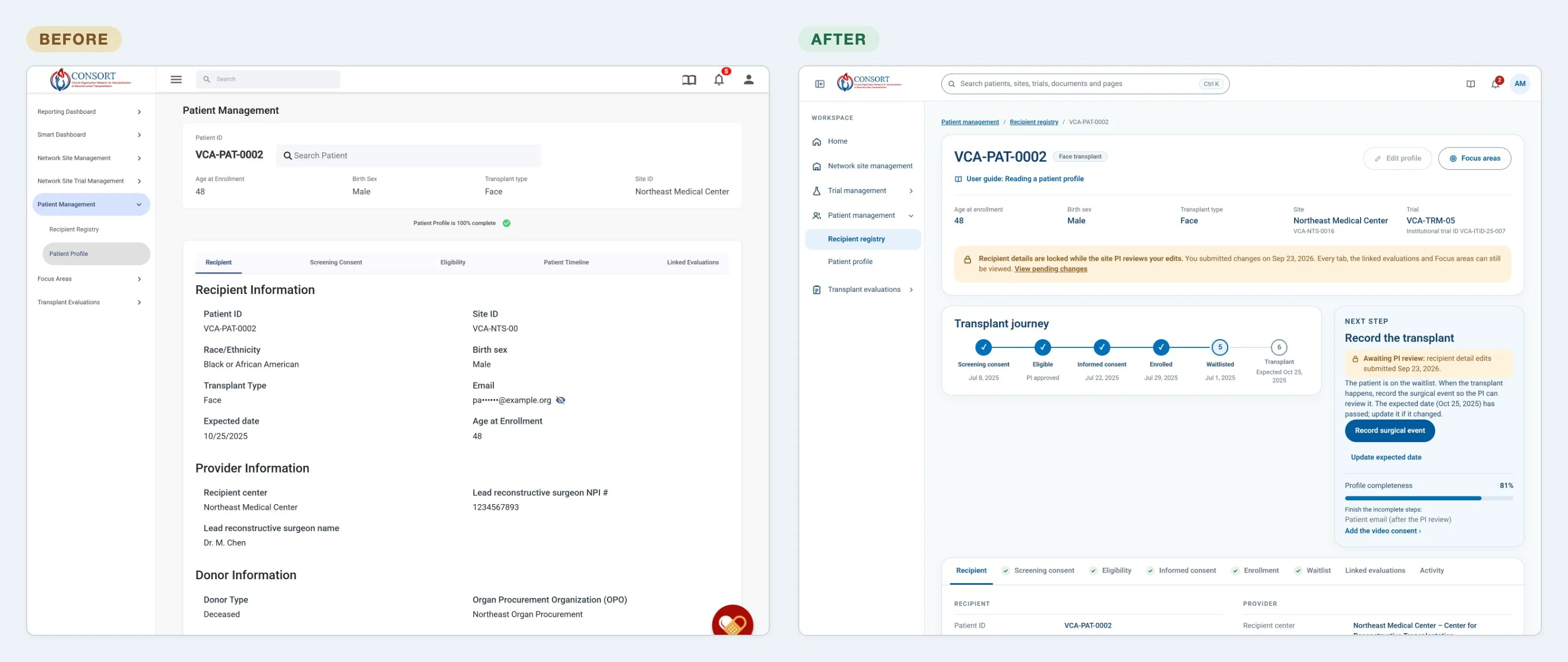 The patient profile: a field list before, a journey and next step after.
The same thinking simplified smaller flows. Adding a document used to take a two-step wizard. Now it is one form with the details, who can read it, and the file on the same page.
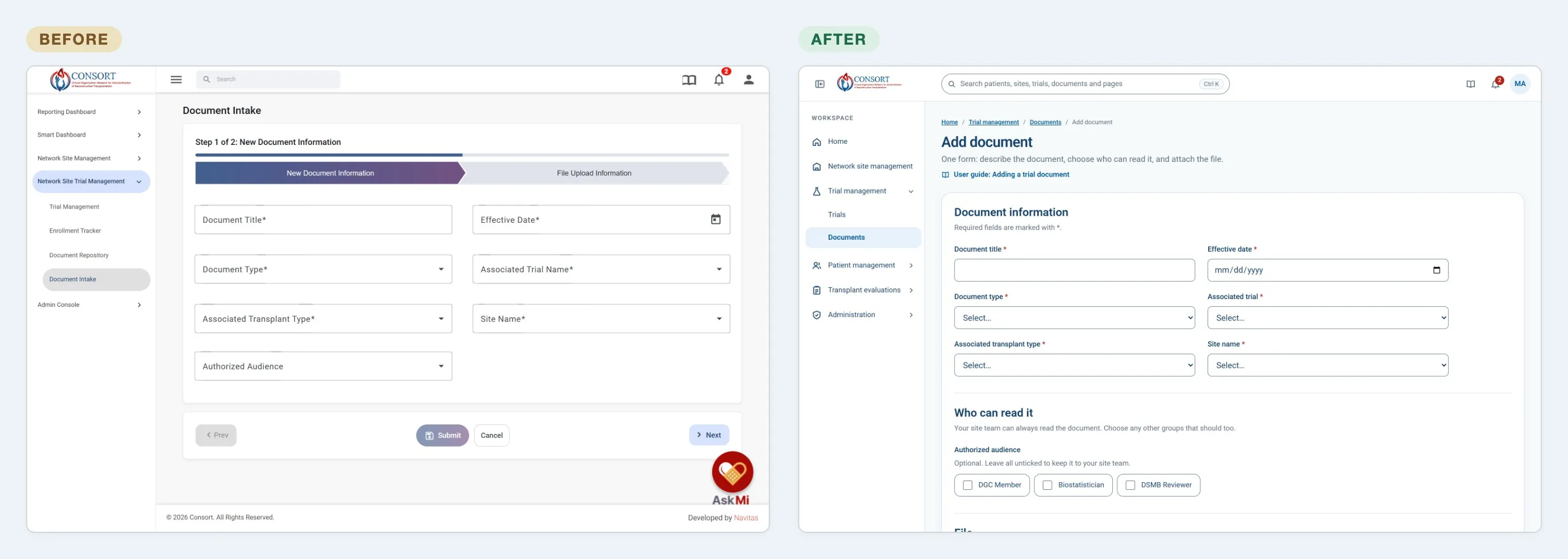 Adding a document: a 2-step wizard before, one form after.
Onboarding new users
The problem: new users landed on the reporting dashboard with no introduction, and empty screens read like errors.
The decision: the first sign-in starts a four-step tour: Welcome, Role, Getting around, and Where to start. It confirms the person’s name, role and site, takes about two minutes, and can be skipped and reopened later. Empty states now tell “nothing here yet” apart from “no matches” and say what to do next.
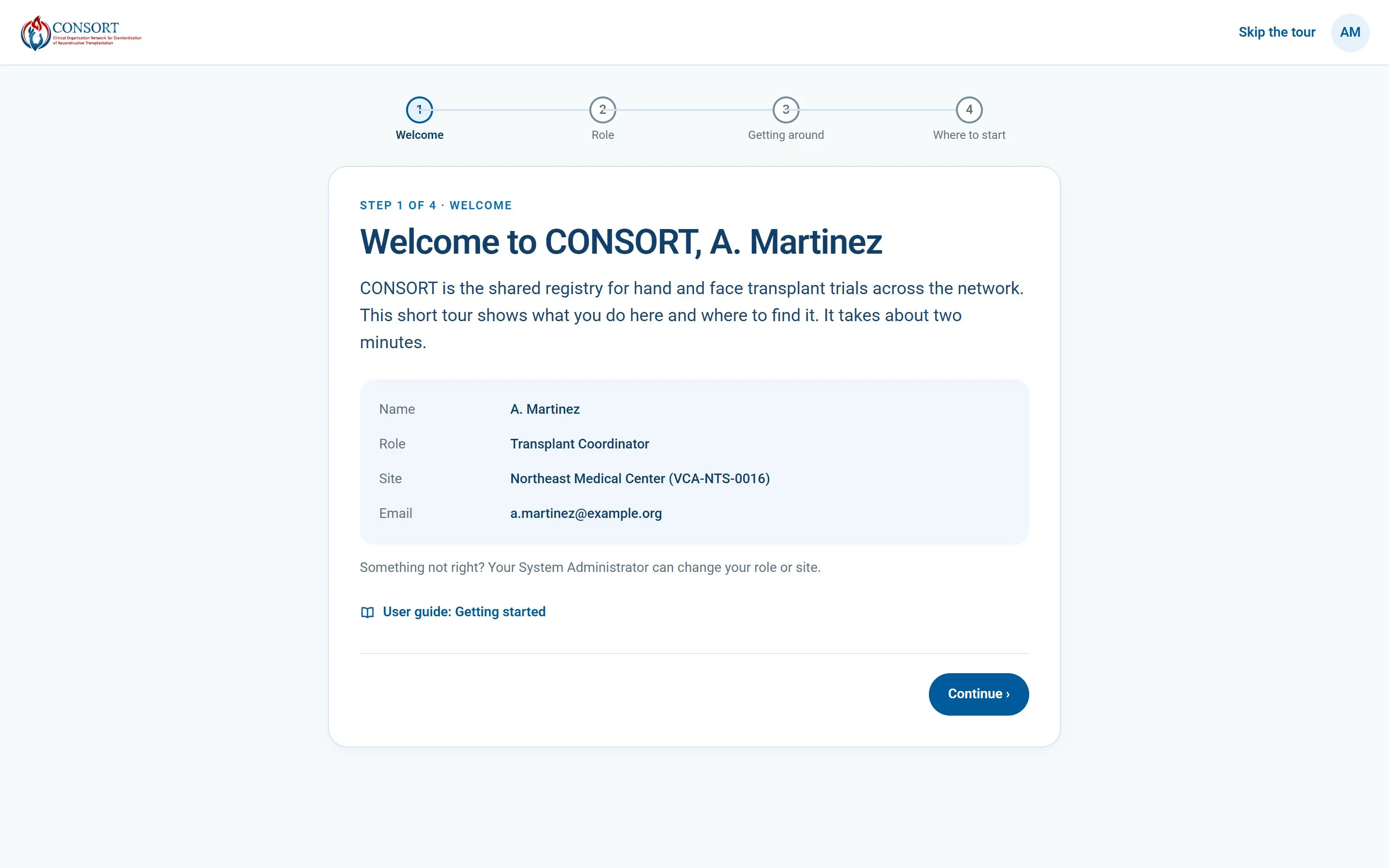 The getting started tour, new in the refresh.
One visual language
The problem: colors, type and controls varied from screen to screen, even within one dashboard.
The decision: one set of design tokens for color, type and spacing, with the Angular Material theme rebuilt on top of them, plus one paginator and one step indicator for the whole app. Not every screen needed a new layout. The sign-in page kept its familiar structure and only took on the new tokens: Roboto type, the CONSORT blues, labels above inputs, and a single primary button style.
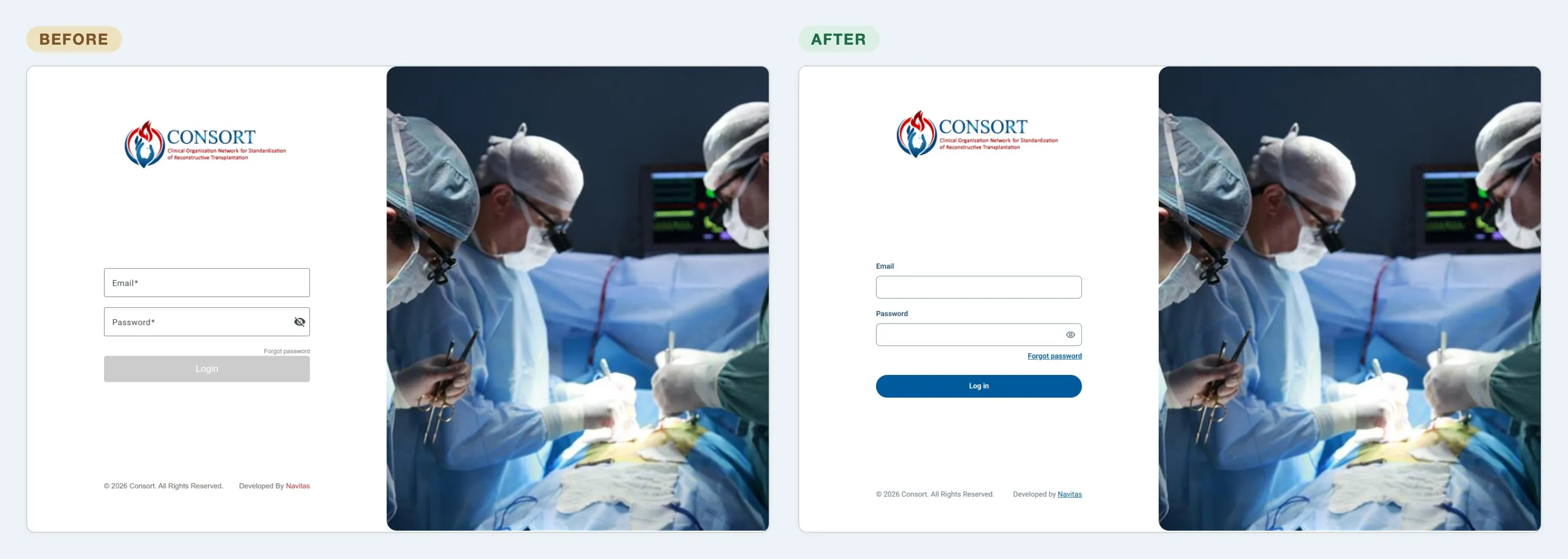 Sign-in: the same layout with the new colors, type and fields.
Site registration’s chevron bar, whose step names were cut off, became a numbered list showing all nine steps in full.
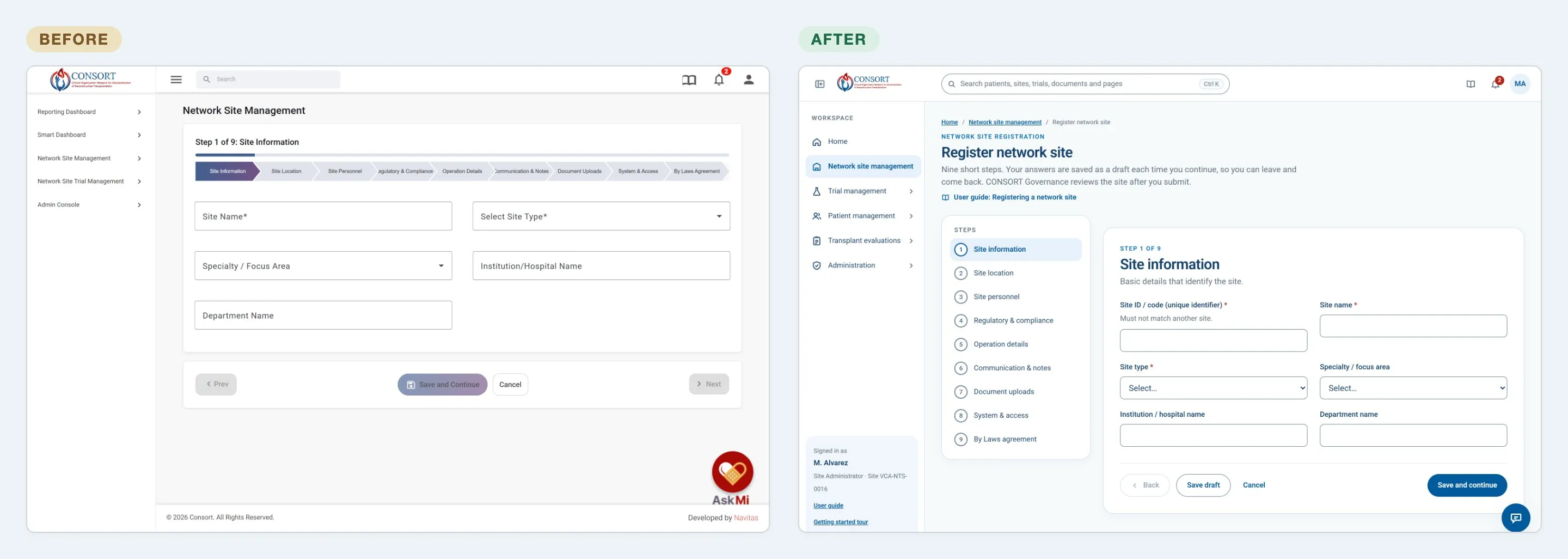 Site registration: a truncated chevron bar before, a full step list after.
Navigation people can follow
The problem: menu labels described the system, not the job.
The decision: the menu now follows the work: Home, Network site management, Trial management, Patient management and Transplant evaluations. Every page has breadcrumbs, and one search box covers patients, sites, trials, documents and pages. In the registry, filters have visible labels and each row has labeled actions instead of icons.
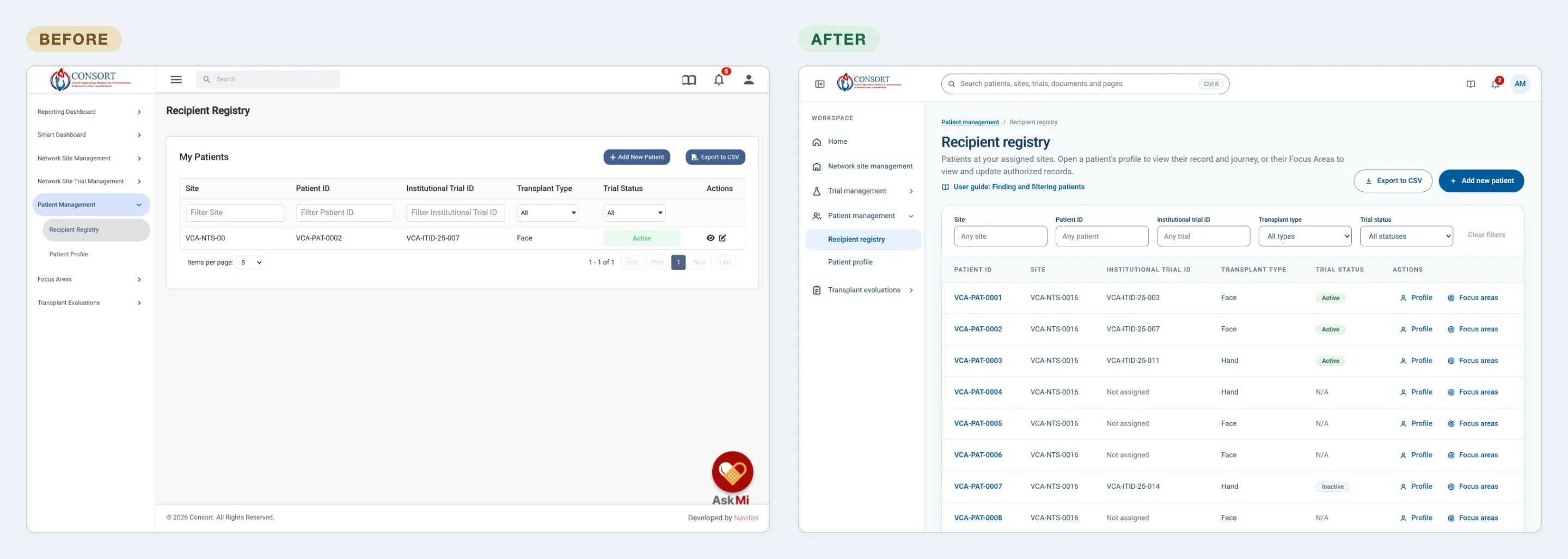 The Recipient registry: icon-only actions and placeholder filters before, labeled filters and actions after.
Accessibility, built in rather than bolted on
Accessibility fixes were the first code to ship, because they were cheap, high-impact and a compliance requirement. The most severe findings were keyboard problems.
- Keyboard and screen reader navigation. Menu items became real buttons and links that take focus, with the current page announced. Every page got a main landmark and a skip link.
- Tables. Row actions became labeled buttons instead of clickable icons, and every filter got a visible label. Fixing the one shared table component fixed every table that uses it.
- Tabs and steps. Tab bars got proper tab semantics, and step lists mark the current step for screen readers.
- Color and contrast. Every color in the new design tokens meets WCAG 2.2 AA. State is never shown by color alone, so selected answers also get a border or a check mark.
- Charts. Each dashboard chart has a “View as table” option for people who can’t see it.
- Forms. Errors sit next to their field, are linked to it for screen readers, and move focus to the first problem.
The next step is a full Section 508 audit of the prototype with ANDI, the Social Security Administration’s testing tool, followed by a pass with the NVDA and JAWS screen readers.
Outcome so far
The prototype was approved, and the redesign has been reaching the production app in small releases since October 2026, foundations first:
- Accessibility: keyboard and screen reader access for the navigation and tables, and labeled filters.
- Foundations: design tokens, one icon set, breadcrumbs on every page, and one paginator and step indicator (in review).
- Picking up work: a session timeout warning and draft records, so answers survive a sign-out.
- Patients: the Recipient registry and patient profile in the new design, with loading, empty and error states and recently viewed patients.
Next up are the guided pre-transplant evaluation, sortable tables and the Section 508 audit. Patient-facing features follow.
Impact numbers are not in yet. Useful measures would be time to complete an evaluation, how often people resume unfinished work, and how often help articles are opened.
What I learned
- Question the brief early. “Refresh the UI” turned out to mean “make data entry guided”. Finding that out in week one changed the priority of everything after it.
- Check findings against the code before sizing them. Reading the front-end source turned several fixes into one shared-component change, and it corrected a wrong finding about how soon the app signs people out.
- Prototype in the medium you ship in. An HTML prototype let us test keyboard and screen reader behavior for real, and gave developers markup to match rather than a picture to interpret.
- Keep what already works. Not every screen needed a new layout. The sign-in page kept its familiar structure and only took on the new colors, type and fields.
- Name the constraints out loud. The UNOS standard limited what could be skipped, and save-and-resume needed new back-end support. Saying so early kept the design realistic.
See it in motion
Screenshots show what changed. These four short clips show how it feels to use, walking through the prototype mostly as a transplant coordinator.
Home. The clip opens on a coordinator’s Home, with “Pick up where you left off” pointing to the exact step of an unfinished pre-transplant evaluation. Below it is the network overview: hovering the monthly chart shows each month’s figures, and the transplant chart narrows to one quarter. Then the same page signed in as the site PI: the resume card and the task shortcuts change to that role’s work, such as eligibility reviews.
Recipient registry to patient profile. The clip filters the registry to hand transplants with the labeled filters, then opens a patient from the Profile action on their row. The transplant journey shows the patient waitlisted, with the transplant expected next. The patient has edits waiting for PI review, so the profile says the record is locked, and the Next step panel says what to do now.
Add a new patient. The clip starts from Add new patient in the registry. The step list separates what the coordinator can do now from what unlocks after PI approval. The site comes preselected from the coordinator’s assignment, and hints explain why a field is needed, such as where the consent forms will be sent. Saving the first step adds the patient to the registry with a new ID. The coordinator then chooses the trial, records the screening consent as signed in person, and sends eligibility to the site PI.
Search and AskMi. ⌘K (Ctrl+K on Windows) jumps to one search across patients, sites, trials, documents and pages. Typing “consent” lists the matching documents, and the arrow keys move through them. Then AskMi, the built-in assistant, answers how many trials the coordinator’s site runs, with links to each trial, and the clip follows a suggested question to enrollment by trial. The panel states its limits up front: answers cover the coordinator’s own site only, and patients appear by coded ID, never by name.